VS Code Copilot MCP Server for Codebase Context
Copilot's agent mode in VS Code can run a genuinely multi-step task: read a few files, edit several more, run a command, check the result. What it reasons over while doing that is retrieval plus whatever you have open; a map of the codebase never enters the picture. Ask it who calls a shared method, or what a schema change breaks three services downstream, and it is pattern-matching on text and open tabs, then presenting a guess with full confidence. Symvanta's MCP server gives agent mode the actual code graph, callers, dependencies, blast radius, each resolved in one tool call. It sits alongside Copilot's own retrieval: use Copilot for the fast, file-local stuff, and hand agent mode a Symvanta tool the moment the question is structural.
Setting up Symvanta in VS Code
- Create a Symvanta account at symvanta.com. Every plan starts with a 7-day trial and takes no card.
- Connect GitHub. Install the Symvanta GitHub App and grant it access to the repositories you want indexed.
- Index your repos. Symvanta builds the graph on first index, then a webhook reindexes automatically on every push, so agent mode is never working off a stale snapshot. Plans start at $19/month. The trial covers Pro too, so you can try branch-aware indexing and higher repo limits before you commit.
- Add the MCP server in VS Code. Per the official VS Code MCP docs, the fastest path is a workspace config file at
.vscode/mcp.json:
{
  "servers": {
    "symvanta": {
      "type": "http",
      "url": "https://mcp.symvanta.com/mcp"
    }
  }
}
Commit this file if you want the whole team wired up the same way; it takes precedence over any user-level entry with the same name for that workspace.
To skip the file entirely, add Symvanta to VS Code in one click. The link opens VS Code's MCP install prompt with the server filled in.
For a guided flow with no JSON editing, open the Command Palette and run MCP: Add Server, pick HTTP as the server type, paste https://mcp.symvanta.com/mcp as the URL, and choose Workspace to scope it to this repo or Global to make it available across every project you open. Global setup goes through MCP: Open User Configuration instead of .vscode/mcp.json.
- Authenticate once. The first time agent mode calls a Symvanta tool, VS Code opens a browser window for an OAuth 2.0 login with PKCE. There is no API key to generate or paste into the config; approve the login once and VS Code holds the session for you.
- Confirm the tools are live. Open Copilot Chat, switch to agent mode, and click Configure Tools in the chat input. Symvanta's tools show up grouped under the server name, each with an on/off toggle if you want to trim the set the model can reach for a given session.
If your organization manages Copilot centrally, VS Code's chat.mcp.access setting can restrict which MCP servers are allowed at all; if Symvanta doesn't show up as an option, that's an admin-side allowlist, not a Symvanta-side block.
What Copilot gets
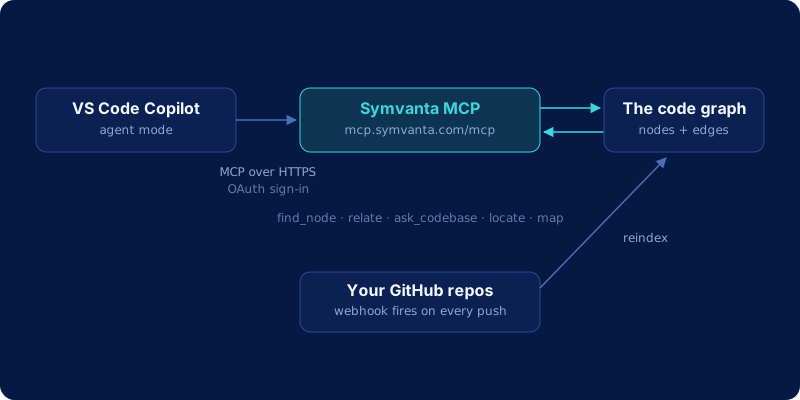
Once the server is connected, agent mode can reach for any of these:
| Tool | What it returns |
|---|---|
find_node |
A symbol's exact file, line range, and signature |
relate |
Callers, dependencies, blast radius, implementers, or call chains for a symbol |
ask_codebase |
A synthesized answer to a behavior question, with file citations |
locate |
Text, semantic, or config-key search across every indexed repo |
map |
An architecture skeleton for a repo or a specific module |
find_http_route |
The handler behind an HTTP method and path |
diff_impact |
What a branch or diff actually breaks downstream |
list_tests_for |
The existing tests that already cover a symbol |
estimate_scope |
A rough size estimate for a proposed change before anyone commits to it |
ref |
Pin a feature branch, or overlay uncommitted working-tree edits, so the reads above reflect what you're actually looking at |
That's 10 of the 25 tools the server exposes; relate alone covers five traversal modes (callers, dependencies, blast_radius, implementers, chain). Coverage spans TypeScript, JavaScript, Python, Java, Kotlin, C#, Go, Rust, Swift, PHP, and Ruby, so a polyglot repo gets one consistent graph across every language in it.
Using it in agent mode
The pattern that matters most is asking agent mode to check the graph before it edits. Take "rename this service method safely": tell agent mode to rename processPayment on PaymentService and update every call site. A prompt-only agent will grep for the name and hope it caught every call site, including the ones that go through an interface or a differently-named override. With Symvanta connected, a good agent-mode instruction is closer to: "Before renaming, call relate with kind: callers on PaymentService.processPayment, call list_tests_for on the same symbol, then make the rename and update every caller and test you found." The graph traversal happens in one tool call each, and the edit that follows is grounded in an actual call list instead of a text match.
This is the same failure mode we walk through in more detail in why AI coding agents fail on large codebases: a bigger context window doesn't tell the agent which files call which other files, and grep on a shared symbol name returns a mix of real call sites, comments, and unrelated matches with the same name. A graph turns "who calls this" into a direct lookup.
For a broader look at how the graph itself is structured, module boundaries, dependency direction, the shape of a codebase before you start asking it questions, see the architecture pages, which walk several well-known open-source repos, VS Code's own included, through their real module maps.
GitHub Copilot cloud agent
The Copilot cloud agent and Copilot code review do not run OAuth for remote servers. Add the server with a headers object carrying an API key from your workspace's Credentials page. The key is a workspace secret; store it in the repository's Copilot settings, not in the repo.
The configuration goes in the repository's Copilot coding agent MCP settings:
{
  "mcpServers": {
    "symvanta": {
      "type": "http",
      "url": "https://mcp.symvanta.com/mcp",
      "headers": {
        "Authorization": "Bearer $COPILOT_MCP_SYMVANTA_API_KEY"
      },
      "tools": ["*"]
    }
  }
}
GitHub substitutes $COPILOT_MCP_SYMVANTA_API_KEY from the repository's Copilot environment secrets, and every secret it will read carries the COPILOT_MCP_ prefix. The interactive agent mode in your editor keeps the OAuth setup above; only the cloud agent and code review need the key.
Frequently asked questions
Does this replace Copilot's own codebase search?
No, the two compose. Copilot's built-in retrieval and open-file context are still useful for fast, file-local edits. Point agent mode at a Symvanta tool specifically when the question is structural: who calls this, what breaks if it changes, what does this route actually handle. Both sit in the same tool picker, and the model chooses between them per turn.
Is my code used to train anything?
No. Symvanta never uses customer code to train models. The graph (symbols and relationships) is what powers the MCP tools; source snippets are fetched on demand and discarded by default, never retained. If your plan includes the source storage add-on, that's an explicit opt-in, not the default behavior.
Should I use workspace config or user config?
Use .vscode/mcp.json (workspace) when you want the setup checked into the repo so every teammate who opens the project gets the same server automatically. Use the user-level configuration, added via MCP: Open User Configuration, when you want Symvanta available across every workspace you personally open, regardless of which repo it is. Workspace config takes precedence for that project if both are defined.
What does this cost?
The VS Code side is free: adding an MCP server costs nothing beyond a Copilot subscription you likely already have. Symvanta itself runs from $19/month on the Starter plan. Every plan starts with a 7-day trial and takes no card, so you can try Pro's branch-aware indexing, cross-repo edges, and higher seat and repo limits before deciding.